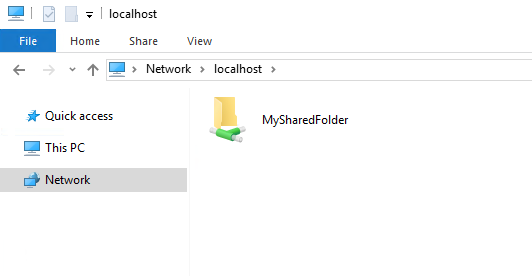
In this guide we will learn how to configure a shared folder between a Windows OS guest Virtual Machine and a Linux Host system
This procedure allow you also to install the required driver for to automatically resize the resolution of Windows when you change the window of the guest system
First thing to do is
configure the virtual machine
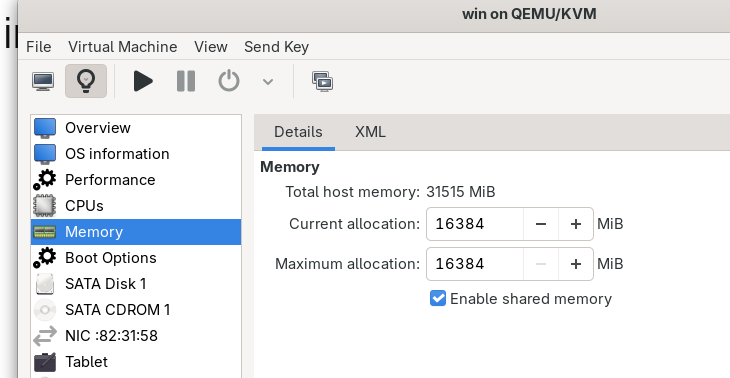
In Memory select Enable shared memory
After that we need to add a new File System from the bottom of the left side bar and put some information
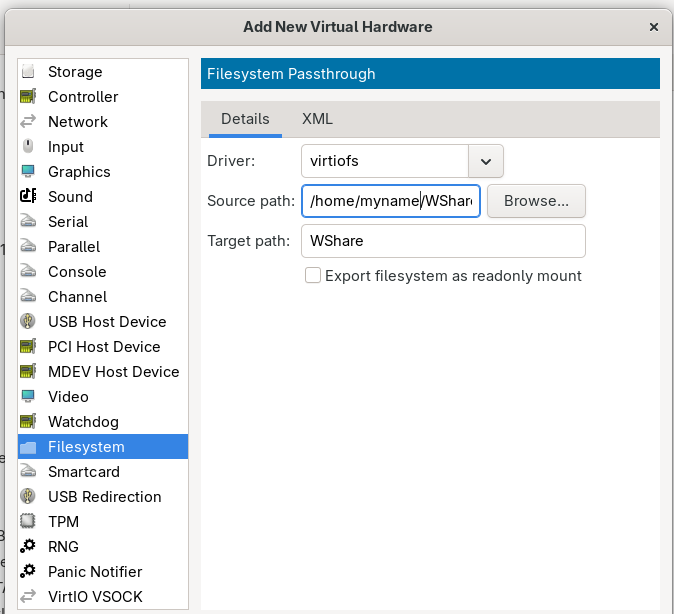
- The driver must be virtiofs
- Source path is the folder on your host Linux System
- Target path is the name of the shared folder on Windows System
WinFSP
Download and install WinSFP.msi from the link below
https://github.com/winfsp/winfsp/releases
During the installation process make sure to install the Core package
Virtio-win-guest-tools
Now, install the virtio-win-guest-tools from the link below
https://fedorapeople.org/groups/virt/virtio-win/direct-downloads
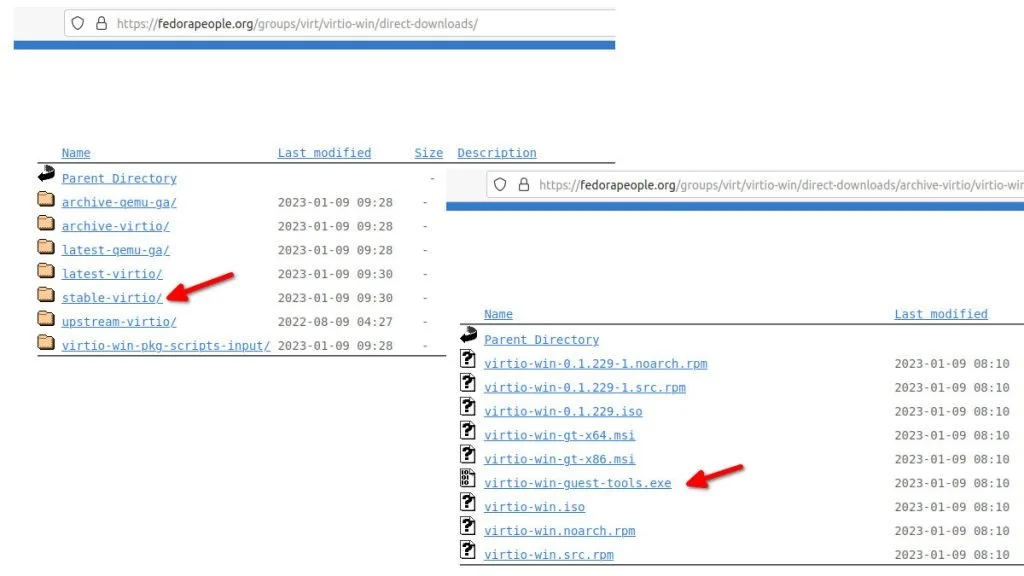
and reboot the Windows OS. Virtio-win-guest-tool also allow you to automatically resize your Windows window
Now, in Services make sure to start and automatically enable VirtIO-FS Service
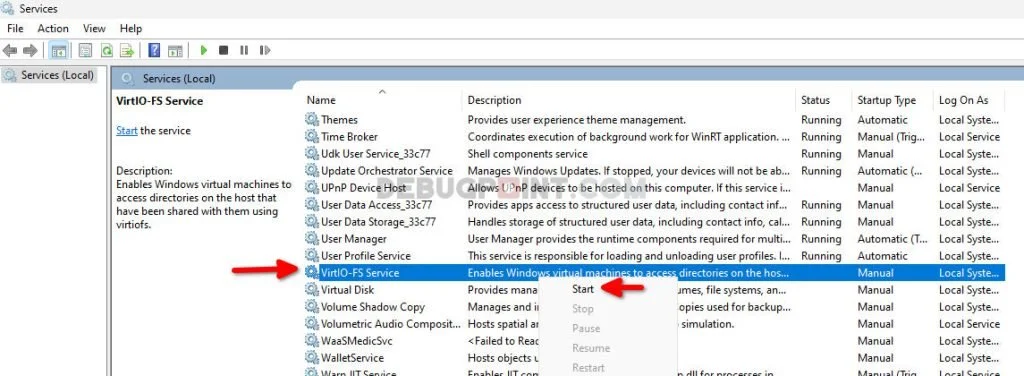
Everything is done. Now you can access all the files in your shared folder. You can find it in Explorer, under This PC section
Leave a Reply